Backup and Restore
PrinterMon's System tab has three controls for managing your data: Create Backup, Restore Backup, and Factory Reset. Backups are full snapshots, not incremental. Restore replaces everything. Factory Reset wipes the node clean.
Where it lives
System Tab
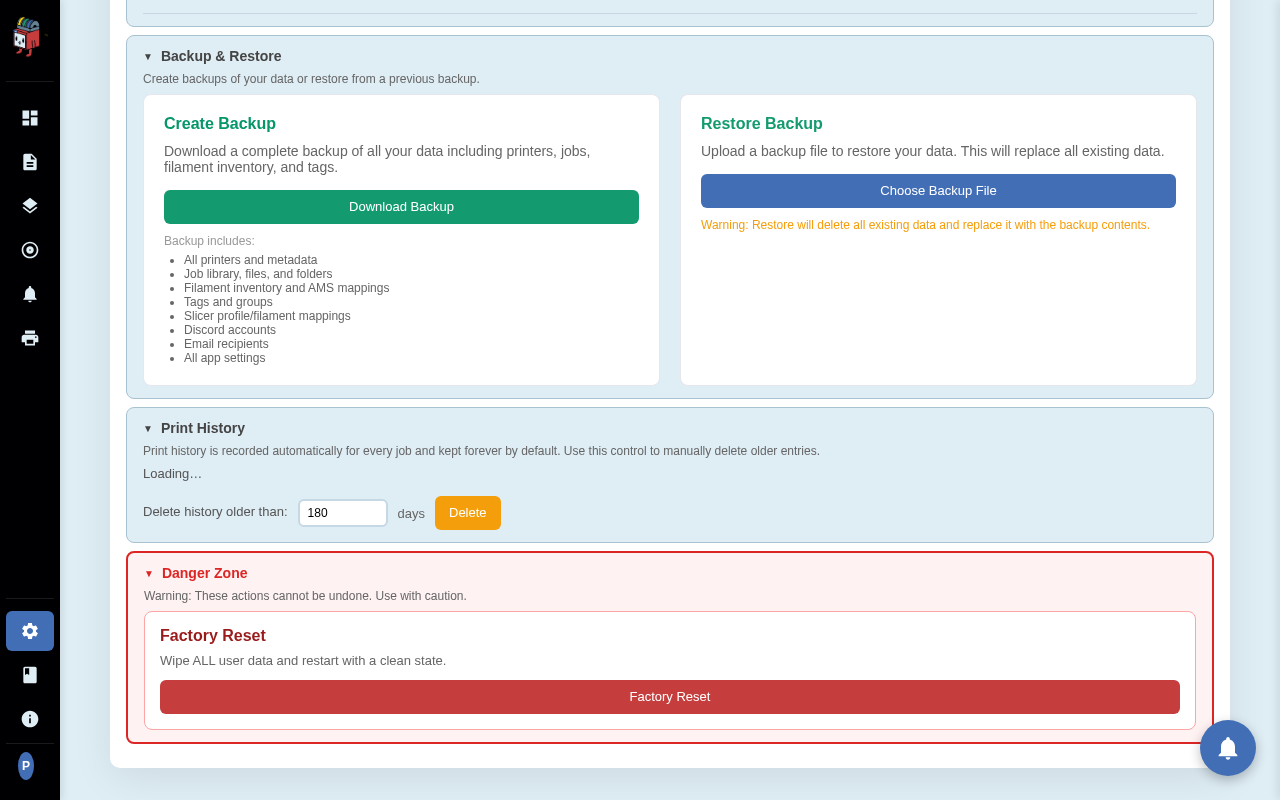
Sign in to your node. Open Settings and pick the System tab. The Backup and Restore section is at the top with two cards. Below it is Print History. At the bottom is a red Danger Zone containing Factory Reset.
Download a backup
Download Notice
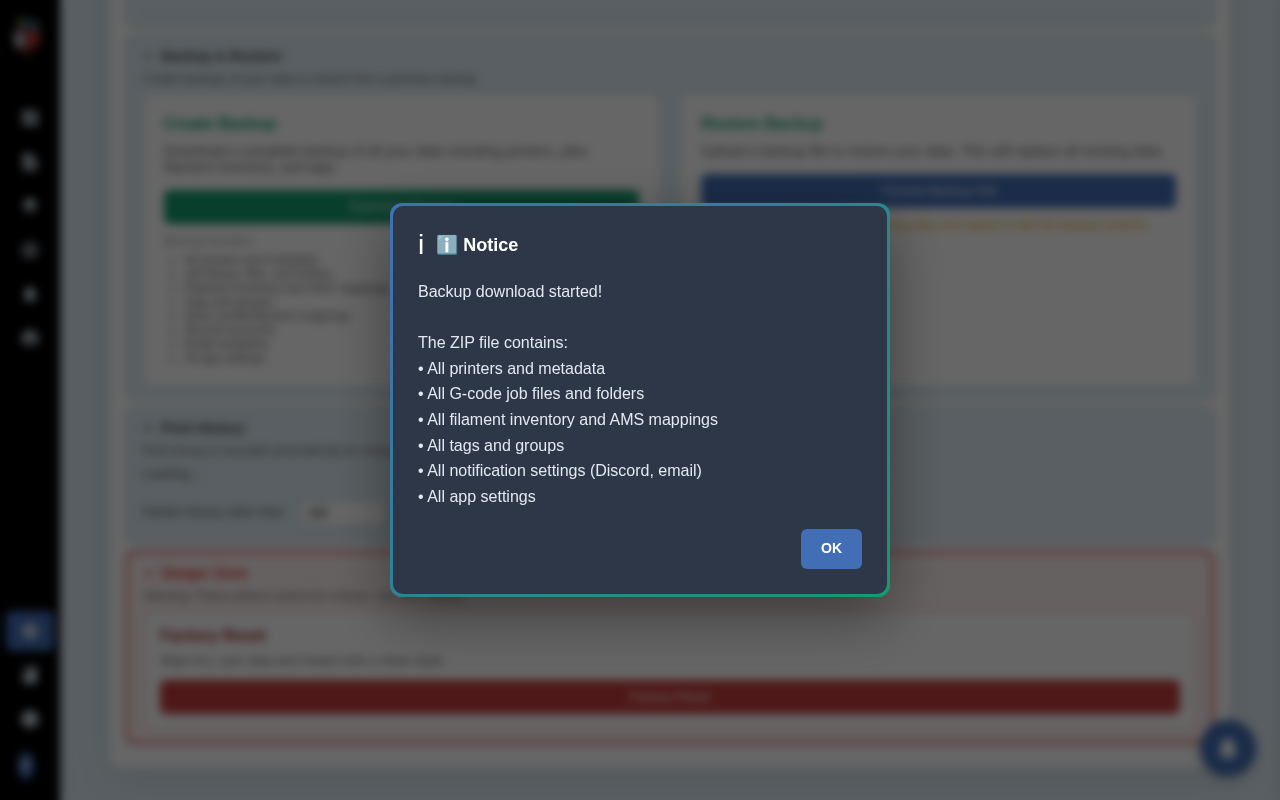
Click the green Download Backup button. Your browser saves a ZIP named printermon-backup-<timestamp>.zip. PrinterMon shows a confirmation dialog summarising what was included.
The complete list of what the backup contains (per the card on the Settings page):
- All printers and metadata
- Job library, files, and folders
- Filament inventory and AMS mappings
- Tags and groups
- Slicer profile and filament mappings
- Discord accounts
- Email recipients
- All app settings
Store the file somewhere off the node. A backup that lives only on the node it backs up is not a backup.
Restore from a backup
Restore Confirmation
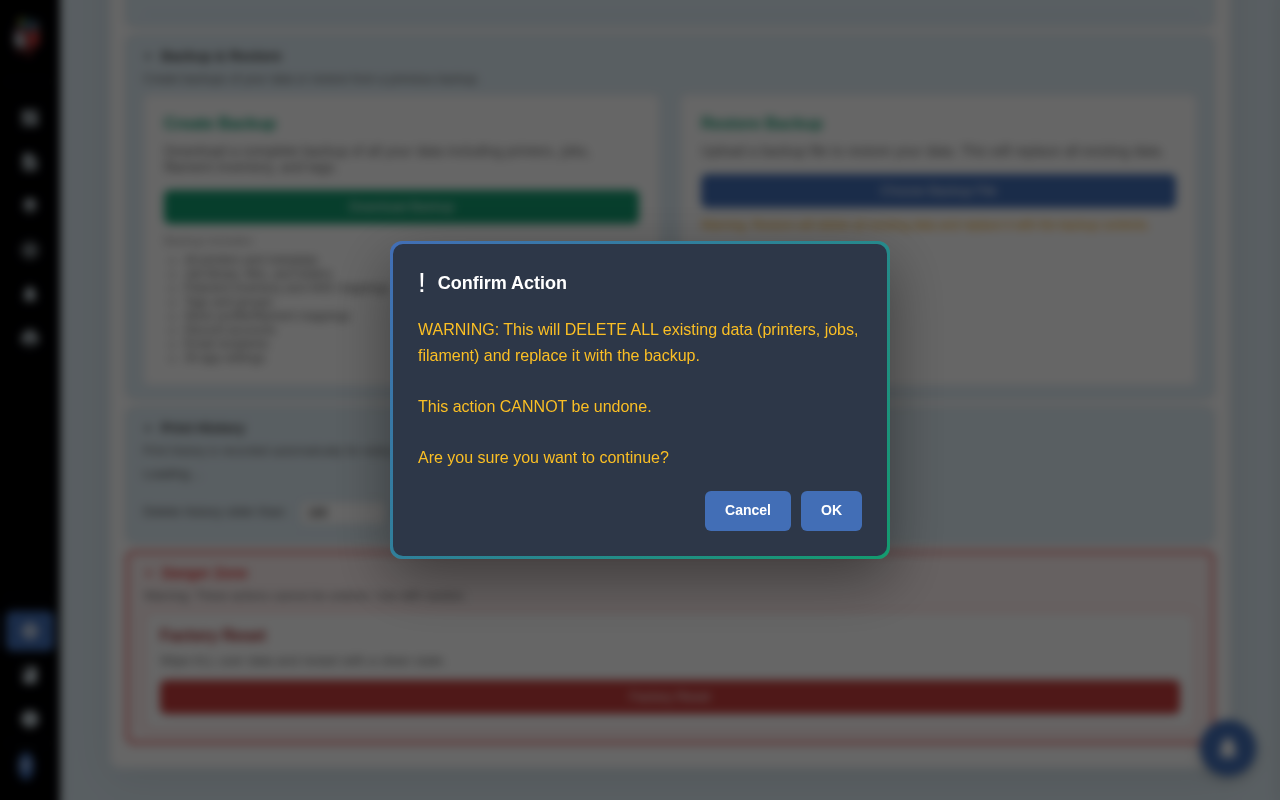
Click Choose Backup File. PrinterMon checks the file ends in .zip and shows a confirmation dialog. The dialog warns the action cannot be undone. Click OK to continue or Cancel to back out.
If you confirm, PrinterMon uploads and restores the contents, then shows a count of what was restored (printers, jobs, library folders, filament spools, AMS mappings, settings, Discord accounts, email recipients). Dismiss that second dialog and the dashboard reloads with the restored data. The container does not restart.
Restore is destructive. If something goes wrong mid-restore you may end up with a partial state. Always download a fresh backup of the current node right before you restore an old one.
Factory Reset
Typed-Phrase Confirmation
Click Factory Reset in the red Danger Zone. The first dialog lists exactly what gets wiped and asks you to type FACTORY RESET in the input box. Anything other than that exact phrase aborts. After you type it and click OK, a second yes/no dialog asks once more if you are sure. Only after both confirmations does PrinterMon actually wipe.
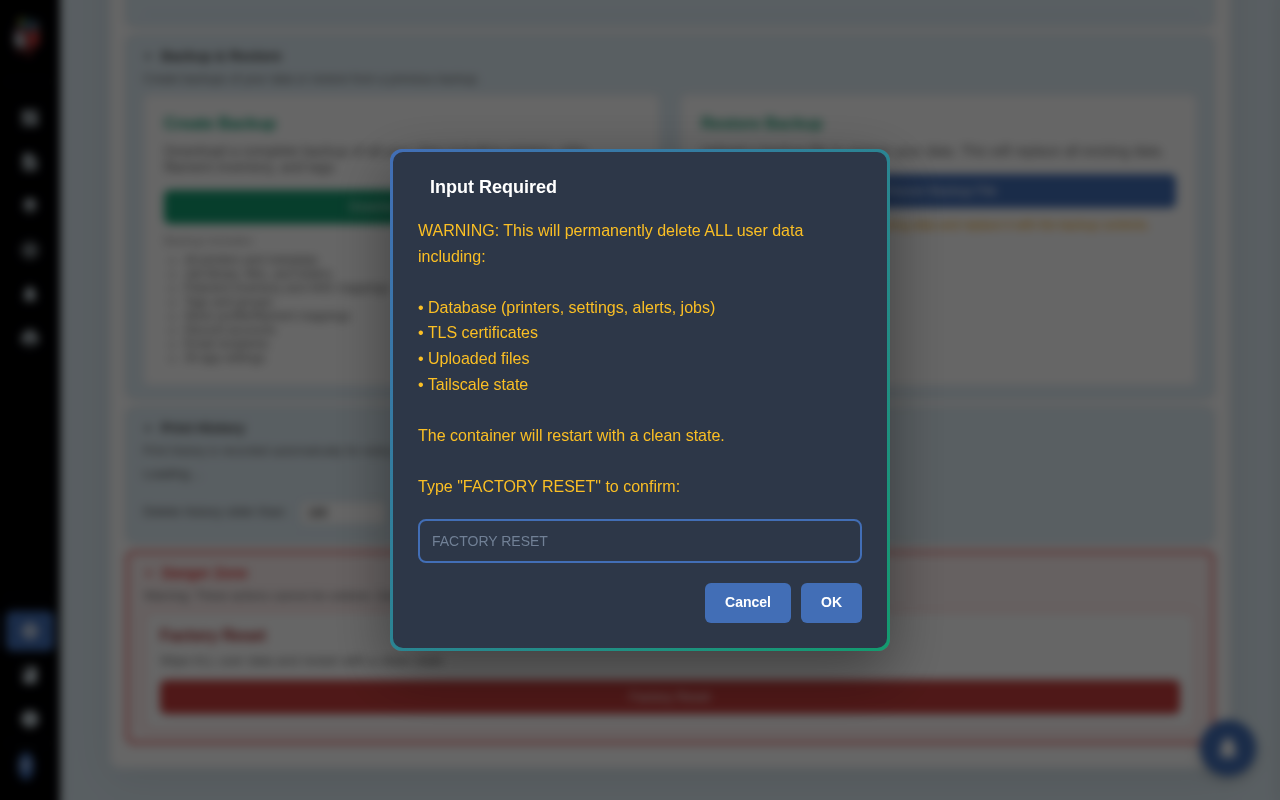
Factory Reset wipes:
- The database (printers, settings, alerts, jobs)
- TLS certificates
- Uploaded files
- Tailscale state
The container restarts with a clean state. There is no undo.
While the container restarts, the dashboard polls every half-second waiting for the new instance. When the database is ready, the page redirects to the home / setup wizard. Expect ten to twenty seconds of downtime.
Use Factory Reset when you are giving the device away, when a restore went sideways, or when you want to start over. For everything else, edit or delete the specific records instead.