Connect Your PrinterMon Node to Your Organization (Draft)
Your PrinterMon node is the local instance running in your home or shop. Connecting it to your printermon.com account turns a standalone node into a managed node. After connecting, the node reports to your organization on the cloud side, your team can see its printers, and features like Multi-User and Remote Tunnel become available (with Browser Login enabled — see Require Browser Login).
Before you start
- You have a printermon.com account. If not, see Create your PrinterMon.com Account.
- You are signed in to the node's web UI as an admin.
- The node has internet access (it needs to reach https://printermon.com to verify credentials).
Step 1. Open the Account section
Settings General
Click Settings in the left sidebar. The General tab opens by default. Scroll to the Account section. Before connecting, the section shows a brief explanation and a single Connect button.
Step 2. Click Connect
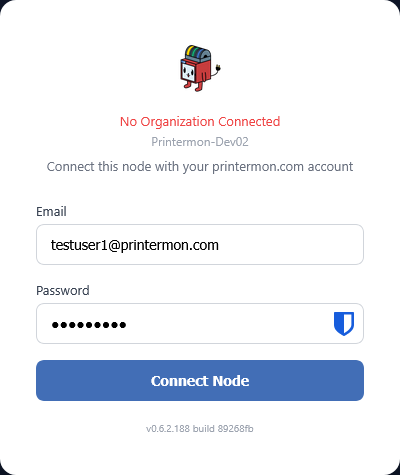
Connect Modal
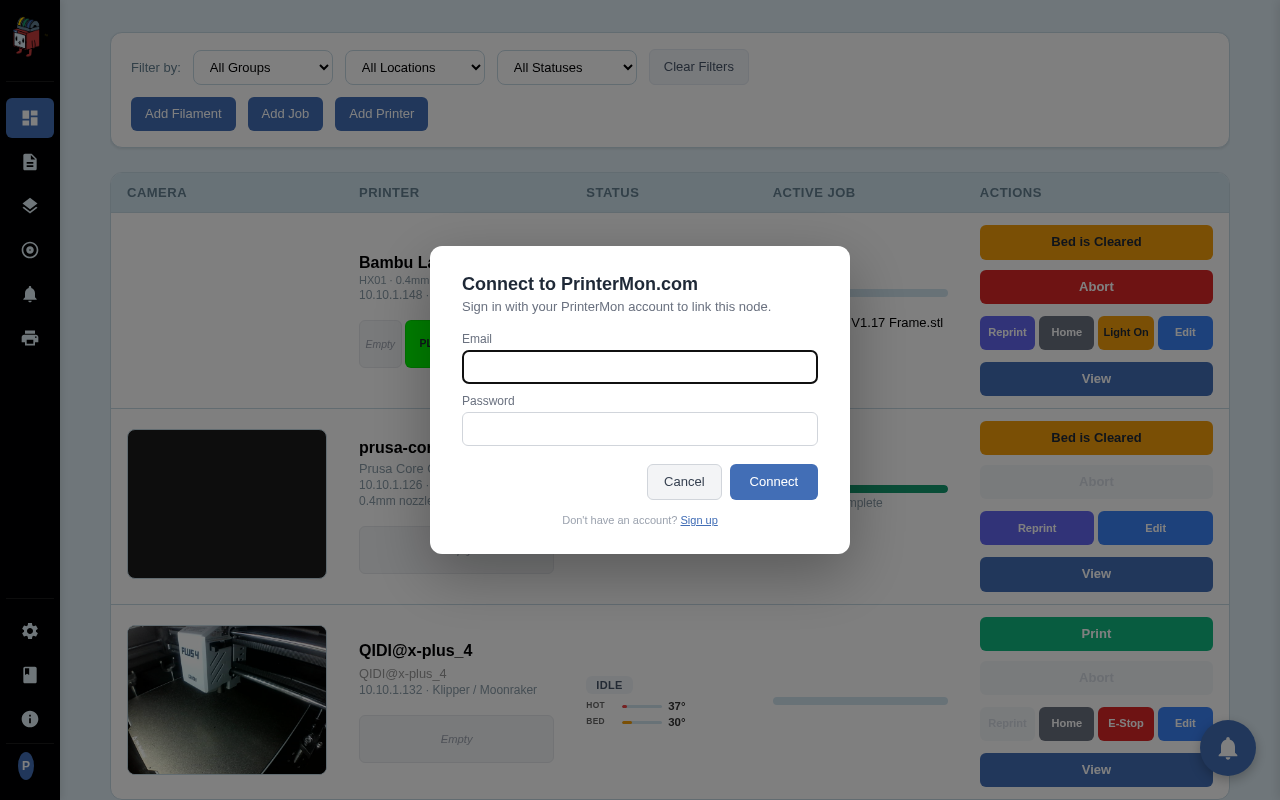
A modal opens inline on the node — no browser redirect, no second tab. Enter your printermon.com email and password. The modal also has a Sign up link to printermon.com/register if you need to create an account first.
Step 3. Submit
Click Connect. The node POSTs the credentials to its own backend, which then verifies them against printermon.com. On success, the modal closes and the Account section refreshes with your account details. The node is now linked.
Step 4. Confirm the linked state
Linked State
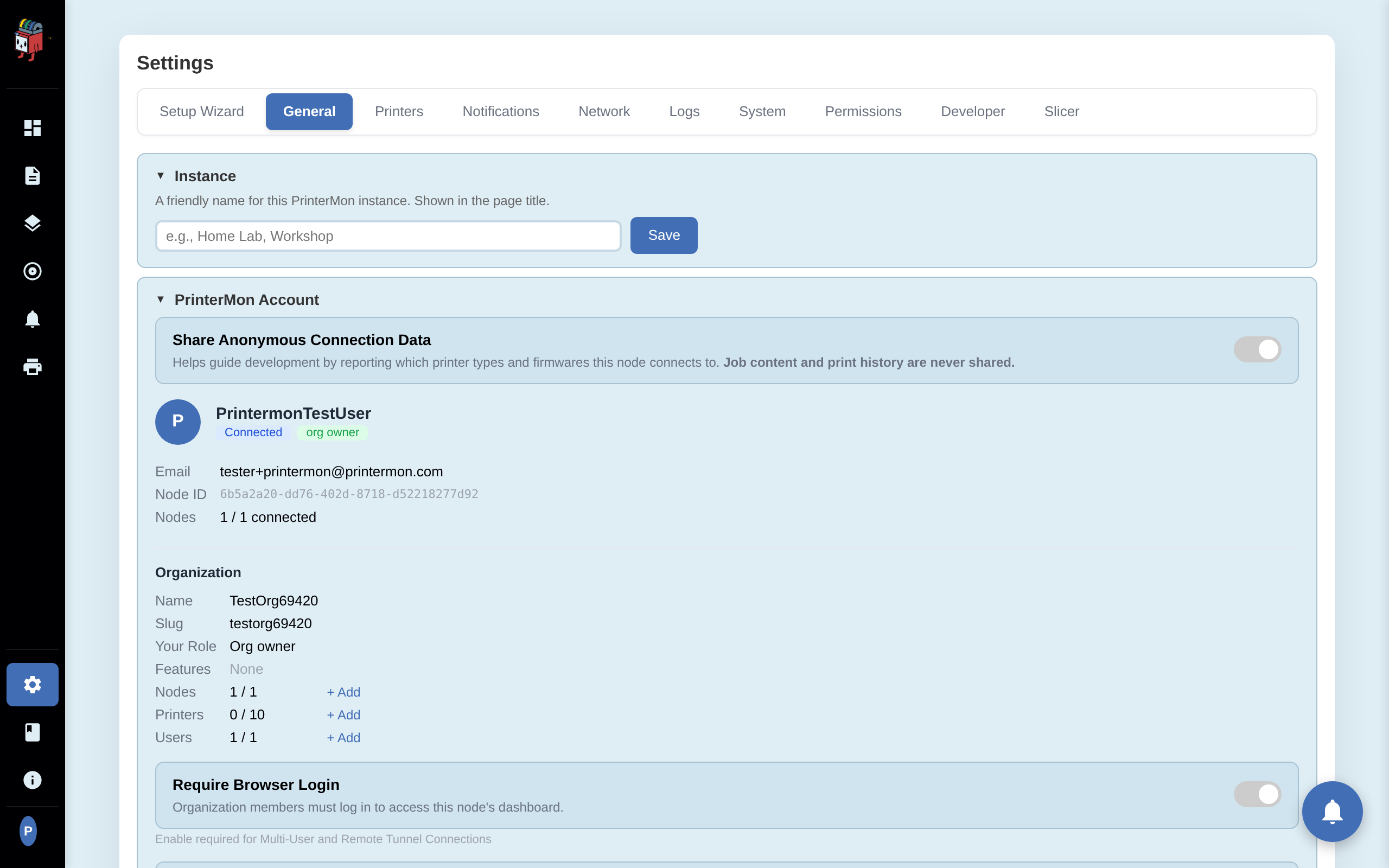
The Account section now shows your name, a Connected badge, your role pill (org owner, member, etc.), your email, the Node ID, and a summary of the Organization the node is associated with (name, slug, members, printers, users). The Connect button is replaced by Logout and Unlink Node buttons.
Step 5. (Optional) Enable Browser Login
Linking the node makes it visible to printermon.com but doesn't automatically gate web access on the node itself. To require all dashboard visitors to sign in, flip Require Browser Login in the same Account section. See Require Browser Login.
What linking changes
- Printers and their status on the node are visible from your printermon.com organization dashboard.
- Other organization members can be added and granted access to this node (requires Browser Login on).
- Remote Tunnel becomes available — operators can drive the node from outside its LAN (requires Browser Login on).
- The slicer API key in the Account section is now usable for slicer authentication.
If linking fails
- Invalid email or password. Check at https://printermon.com/login that you can sign in with the same credentials. Reset the password there if needed.
- Network error. The node couldn't reach printermon.com. Check the node's internet access (a quick way: open Settings > Logs and look for outbound HTTP failures).
- Account has no organization. Go to https://printermon.com/account create an organization first, then come back and connect.