Delete a Printer
Deleting a printer removes the live link between PrinterMon and that device. It does not destroy print history, photos, or files in the library — those stay queryable on the node. The action is destructive in the sense that the printer disappears from the dashboard and from polling, but the underlying records remain.
Step 1. Open the Printers list
Printers Tab
In the node's web UI, click Settings, then choose the Printers tab. Every printer attached to this node is listed with its name, manufacturer / model, firmware, and connection status. Each row has a Delete button.
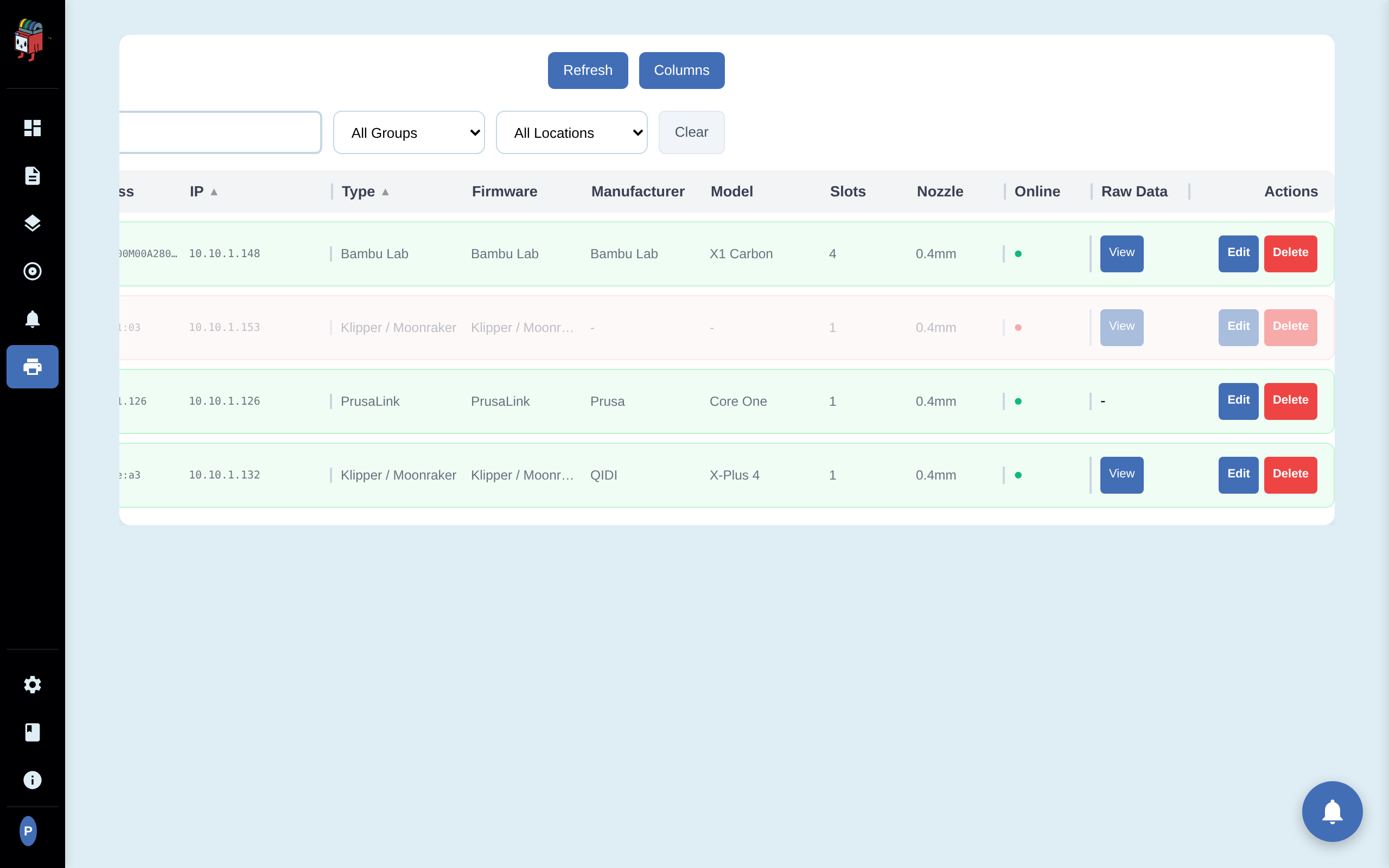
Step 2. Click Delete on the target row
Delete Button
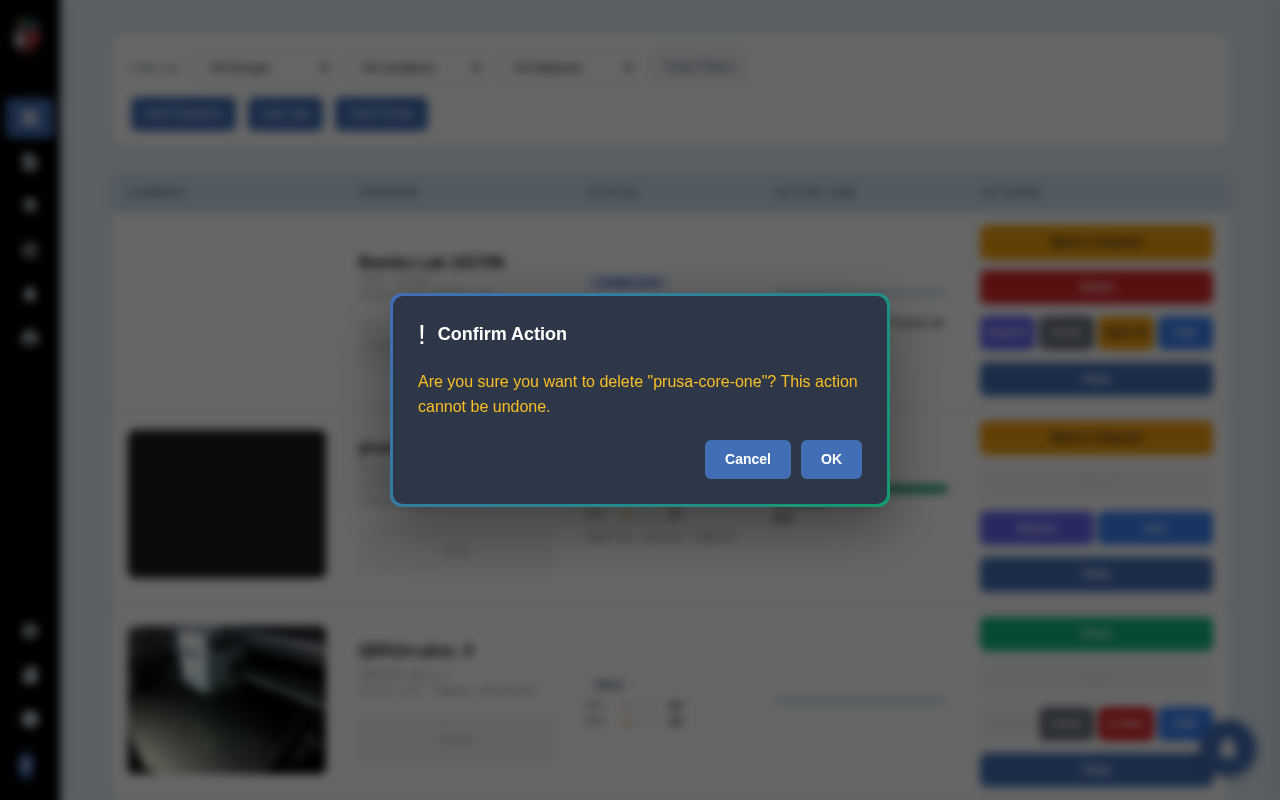
Click Delete on the row of the printer you want to remove. PrinterMon does not delete anything yet; it asks you to confirm first.
Step 3. Confirm
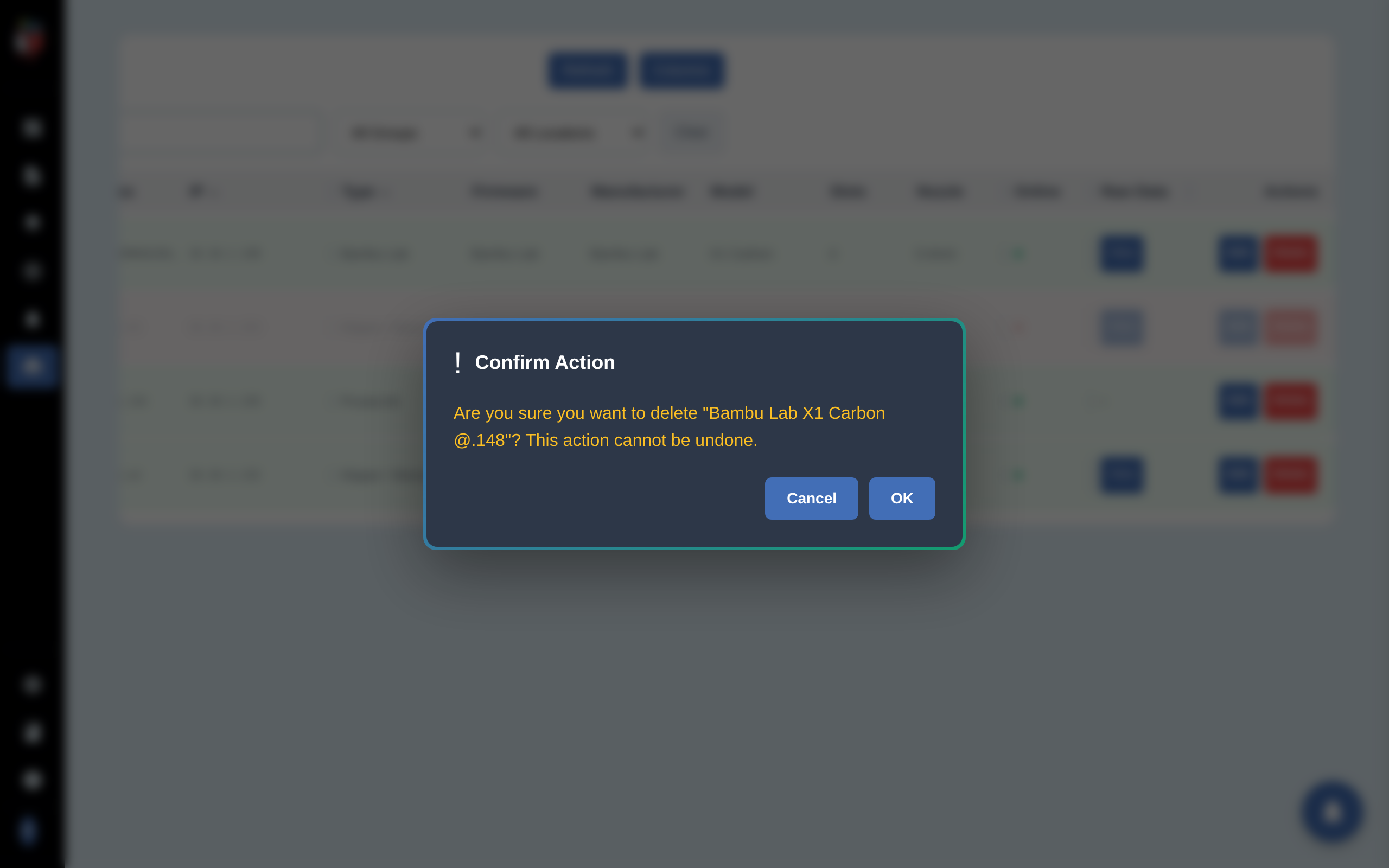
Confirm Dialog
The dialog names the printer explicitly and warns that the action cannot be undone. Click OK to remove the printer. Click Cancel to keep it. There is no second prompt.
What gets deleted, what stays
- Removed. The dashboard row, the network address, the saved credential, and any active polls.
- Kept. Print history rows, completed-job photos, and any files in the library that were sliced for or uploaded to this printer.
- Side effects. Active alerts for this printer are dismissed. The deletion is logged with the printer's name and id.
If you re-add the same printer later (same IP, same firmware), historical print records do not automatically reattach to the new printer record. They remain in the database under the original printer id and are queryable from the database view, but the dashboard treats the new record as a fresh printer.
When to delete vs. when to leave it
- Printer temporarily offline. Leave it. PrinterMon will reconnect when it comes back. Click Reconnect on the row if it stays offline after the printer is back online.
- Printer permanently retired or sold. Delete.
- Replacing one unit with another of the same model. Edit the existing record's IP (or use Reconnect) rather than deleting and re-adding. Keeps history attached.
- Moving the printer to a different node. Delete from the old node, add fresh on the new node.