Enable Discord Notifications
PrinterMon can post print start, finish, and alert notifications into a Discord channel, and DM specific users. The setup creates a Discord application, copies its credentials into PrinterMon, and authorizes the bot to join your server.
What you will need
- A Discord account with permission to add bots to the server you want notifications in.
- Access to your PrinterMon node's web UI as an admin.
- Your node reachable on a stable IP (the Discord OAuth redirect needs a fixed address, not a hostname that changes).
Step 1. Open PrinterMon's Discord Integration panel
Notifications Tab
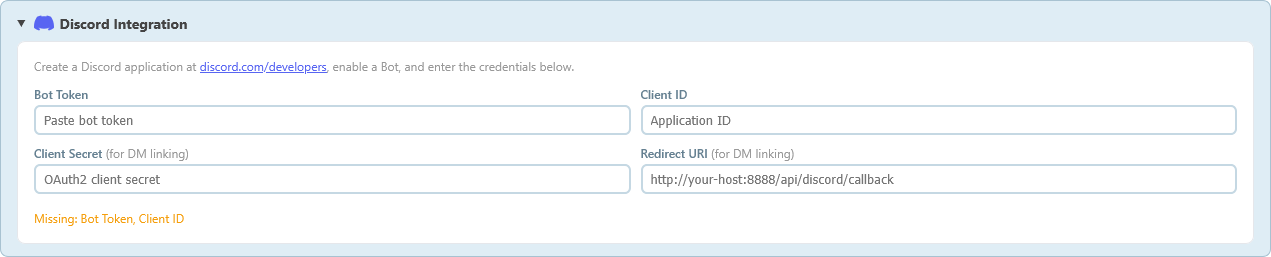
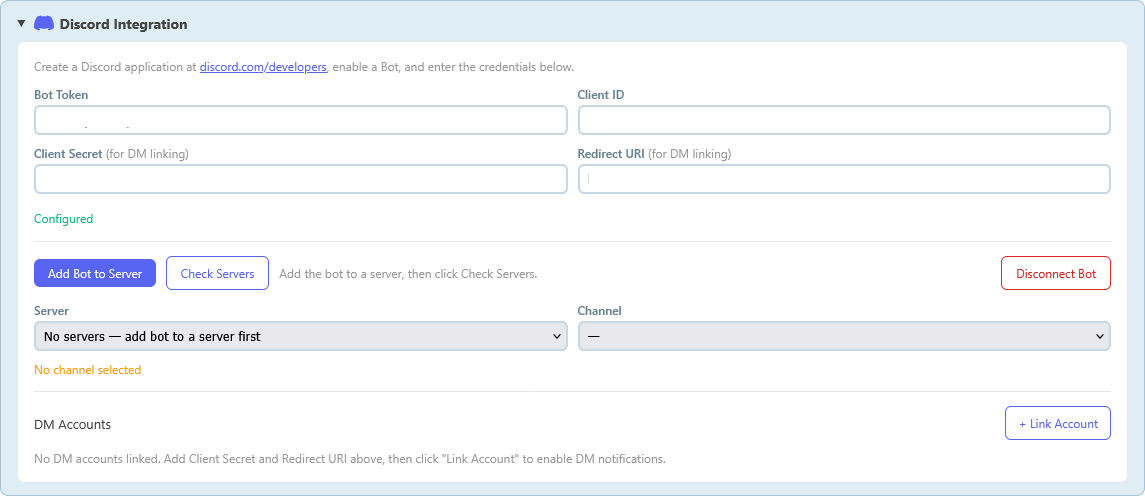
Sign in to your node. Open Settings, choose the Notifications tab, and locate the Discord Integration panel. The fields you need to fill are Bot Token, Client ID, and Client Secret. The Redirect URI on the right is read-only and you will paste it into Discord later.
Step 2. Create a Discord application
New Application
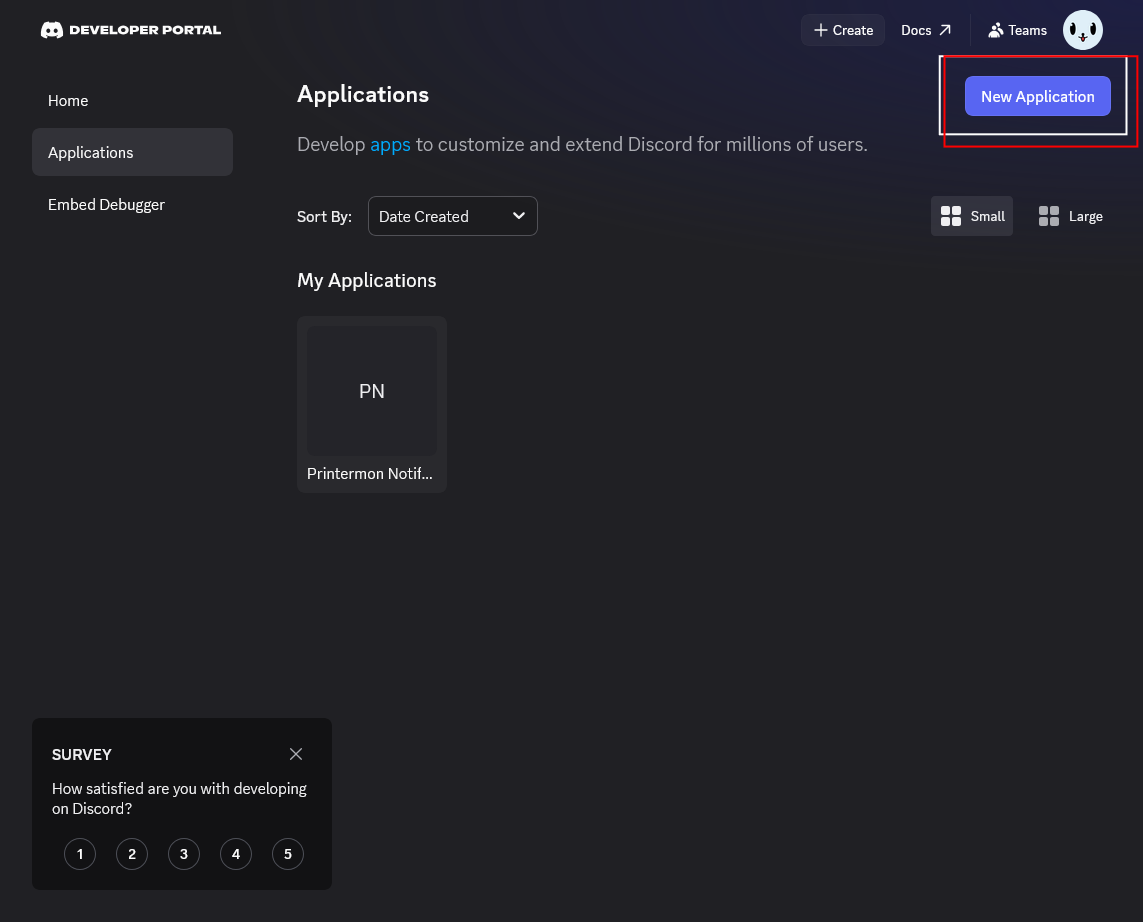
Open https://discord.com/developers/applications Sign in with your Discord account if prompted. Click New Application in the top right.
Name and Create
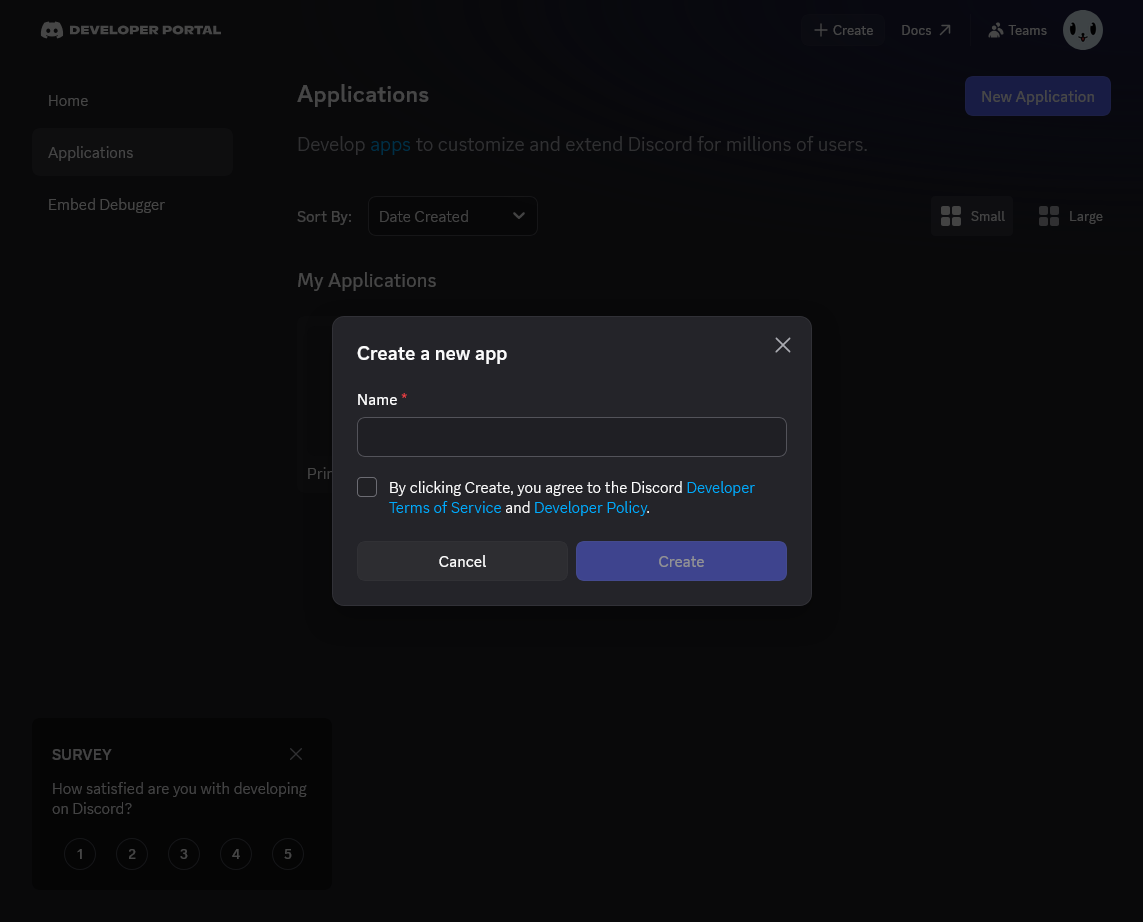
Pick a name (PrinterMon, Printermon Notifier, anything you like), agree to the developer terms, and click Create.
Step 3. Generate a Bot Token
Bot Token
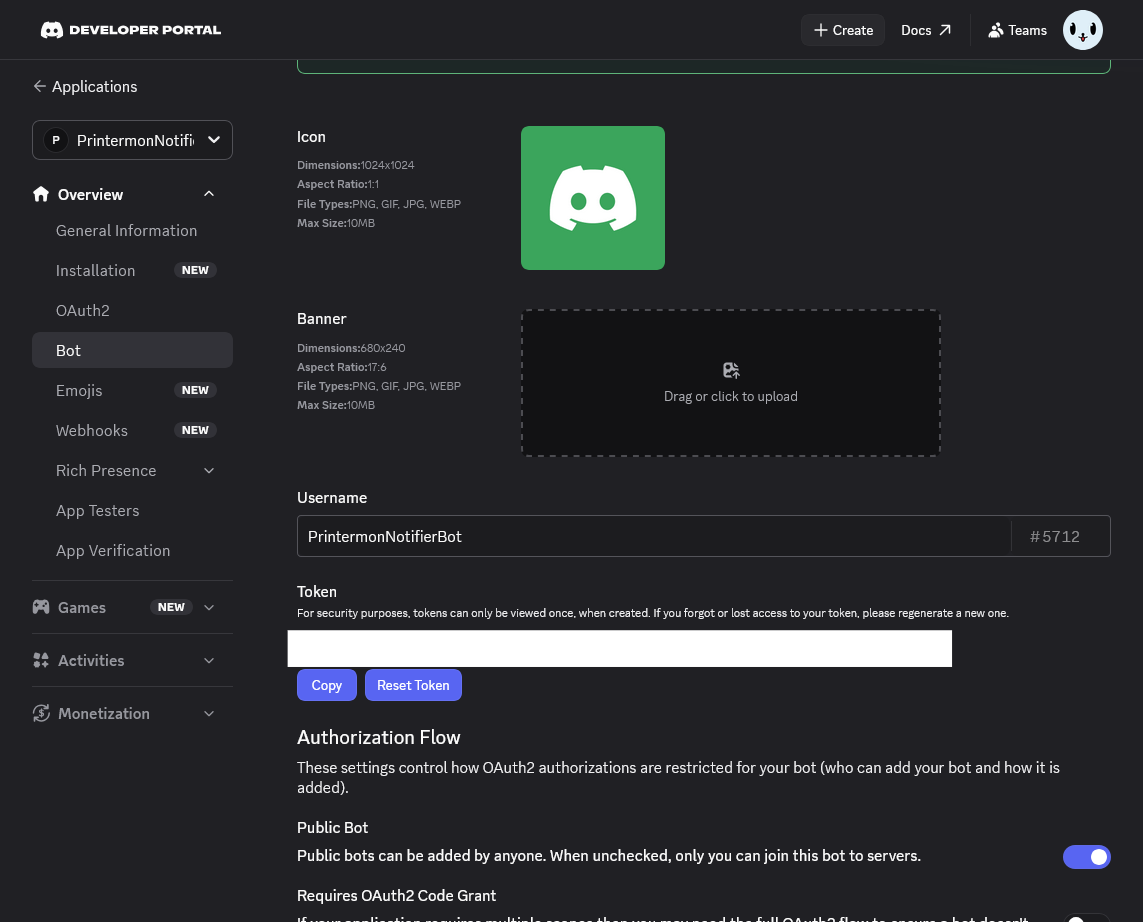
In the left nav of your application, click Bot. Click Reset Token, confirm, then click Copy. Paste the token straight into PrinterMon's Bot Token field. Discord only shows the token once. If you close this page without copying, you will need to reset it again.
Step 4. Copy OAuth2 credentials and add the redirect
OAuth2
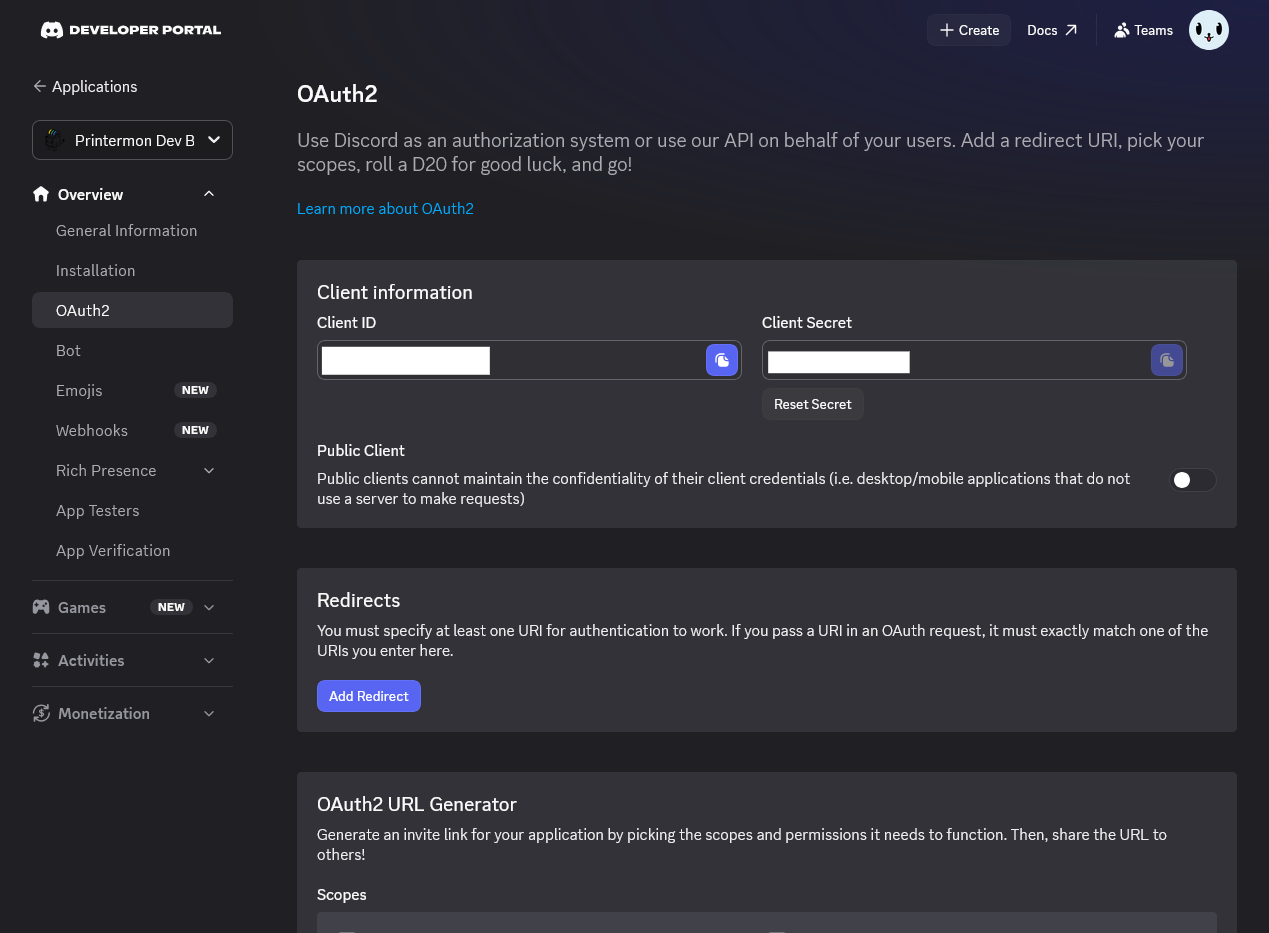
Click OAuth2 in the left nav. Copy the Client ID and Client Secret into PrinterMon. Then go back to PrinterMon, copy the Redirect URI, and paste it into Discord under OAuth2 > Redirects (click Add Redirect first). Save in Discord. The redirect must be the exact IP and port shown by PrinterMon. If PrinterMon shows http://localhost or some other non-IP value, close that page and reopen the node by its LAN IP first.
Step 5. Add the bot to your server and pick a channel
Authorize
In PrinterMon, click Add Bot to Server. A new tab opens asking which Discord server to authorize. Pick the server, approve the requested permissions, and confirm. Back in PrinterMon, click Check Servers, then choose the server and the channel from the dropdowns. Click Test to send a test message.
Step 6. Optional. Link DMs to individual users
Direct Messages
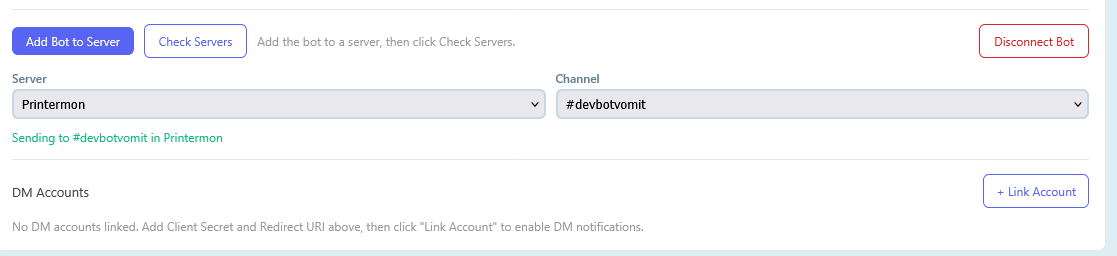
If you want PrinterMon to DM specific people instead of (or in addition to) channel posts, each person clicks Link Account in PrinterMon while signed in to Discord. Once linked, their username appears in the DM Account list with Test and Unlink buttons.
Troubleshooting
- Missing: Bot Token, Client ID. The integration card shows this when those fields are empty. Recheck the values you copied from Discord.
- Authorize fails with redirect mismatch. The redirect URI in Discord must match what PrinterMon shows exactly, including http vs https and the port. Update Discord to match.
- Bot connects but does not post. Check that the bot has Send Messages permission in the channel you picked, and that the channel is selected in the PrinterMon dropdowns.
- Token leaked. Click Reset Token in Discord. Paste the new value into PrinterMon. The old token stops working immediately.