Enable Email Notifications
PrinterMon can email print start, finish, and alert events to one or more recipients. Email is good for at-a-glance summaries; pair it with Discord notifications for real-time alerts. Setup is just SMTP credentials from your provider.
What you will need
- An email account you can send from. Gmail, Outlook, Fastmail, or any SMTP provider works.
- An app password if your provider uses 2FA. (Almost everyone does now.)
Step 1. Open PrinterMon's Email Notifications panel
Notifications Tab
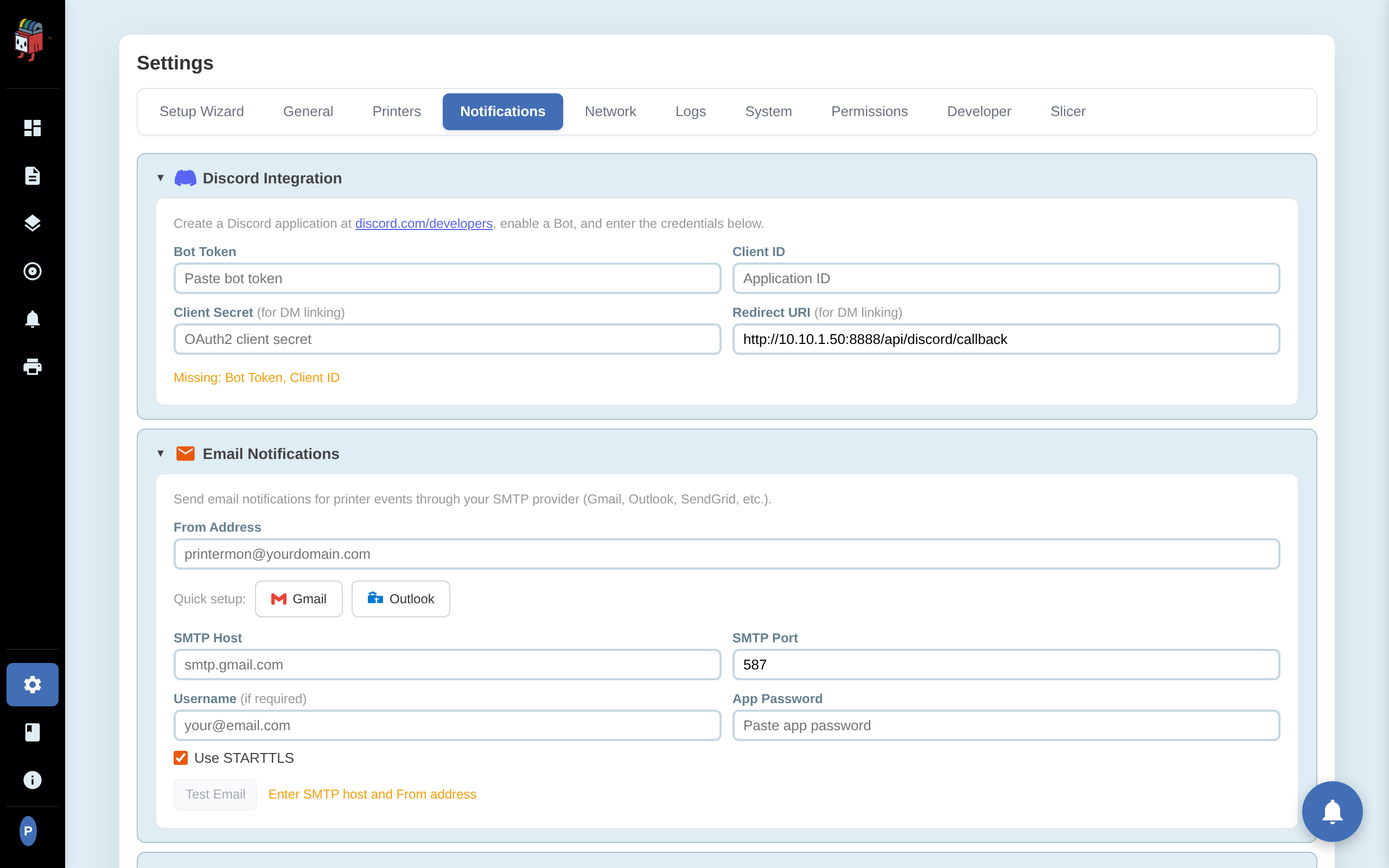
Sign in to your node. Open Settings, choose the Notifications tab, and scroll to the Email Notifications panel. You will see fields for the sending address, SMTP host and port, username, and app password.
Step 2. Get an app password from your provider
If your provider has 2-factor authentication on (you should), you cannot use your regular login password for SMTP. You need an app password.
- Gmail. Go to https://myaccount.google.com/apppasswords Sign in. Pick a name (PrinterMon) and click Create. Google shows a 16-character code. That is your app password. Copy it before closing the dialog. Google only shows it once.
- Outlook / Microsoft 365. Go to https://account.microsoft.com/security then Advanced security options. Under App passwords, click Create a new app password. Copy the value.
- Other providers. Search the provider's help for "app password" or "SMTP password". Most modern providers offer one.
Step 3. Quick setup with Gmail or Outlook
If you use Gmail or Outlook, click the matching button in PrinterMon. PrinterMon prefills the SMTP host, port, and STARTTLS setting. Then enter:
- From Address. The mailbox you are sending from. Use a real address, not noreply@.
- Username. Usually the same as From Address.
- App Password. The value you copied from your provider.
Step 3 alternate. Manual SMTP setup
For any other provider, fill in the fields by hand:
- SMTP Host. Your provider's host (e.g. smtp.fastmail.com).
- SMTP Port. 587 for STARTTLS (the common case), 465 for implicit TLS, 25 unencrypted (avoid).
- Use STARTTLS. On for port 587. Off for port 465.
Step 4. Test and save
Click Test Email. PrinterMon sends a one-line message to the From Address and reports the result. If the test passes, you are done. Add print event recipients in the recipients list and PrinterMon will email them when those events fire.
Troubleshooting
- Authentication failed. The username or app password is wrong. Regenerate the app password at your provider and paste it again.
- Connection refused or timeout. The SMTP host or port is wrong, or your network is blocking outbound port 587. Try port 465 with STARTTLS off.
- Test passes but real emails do not arrive. Check spam. Some providers also rate-limit new senders. PrinterMon has its own rate limit you can configure to avoid floods.
- Gmail blocks the message with a "less secure app" notice. You are using your account password instead of an app password. Generate an app password and use that.