
File Library Actions
The Job Management tab is the central inventory of every G-code or 3MF file PrinterMon knows about. Files land here from slicer pushes, manual uploads, and per-printer reads. From this page you can search, filter, organise into folders, lock, rename, delete, push to a printer, download, or inspect raw G-code.
Where it lives
Job Management Tab
Click Job Management in the left sidebar. The page opens on the File Library sub-tab.
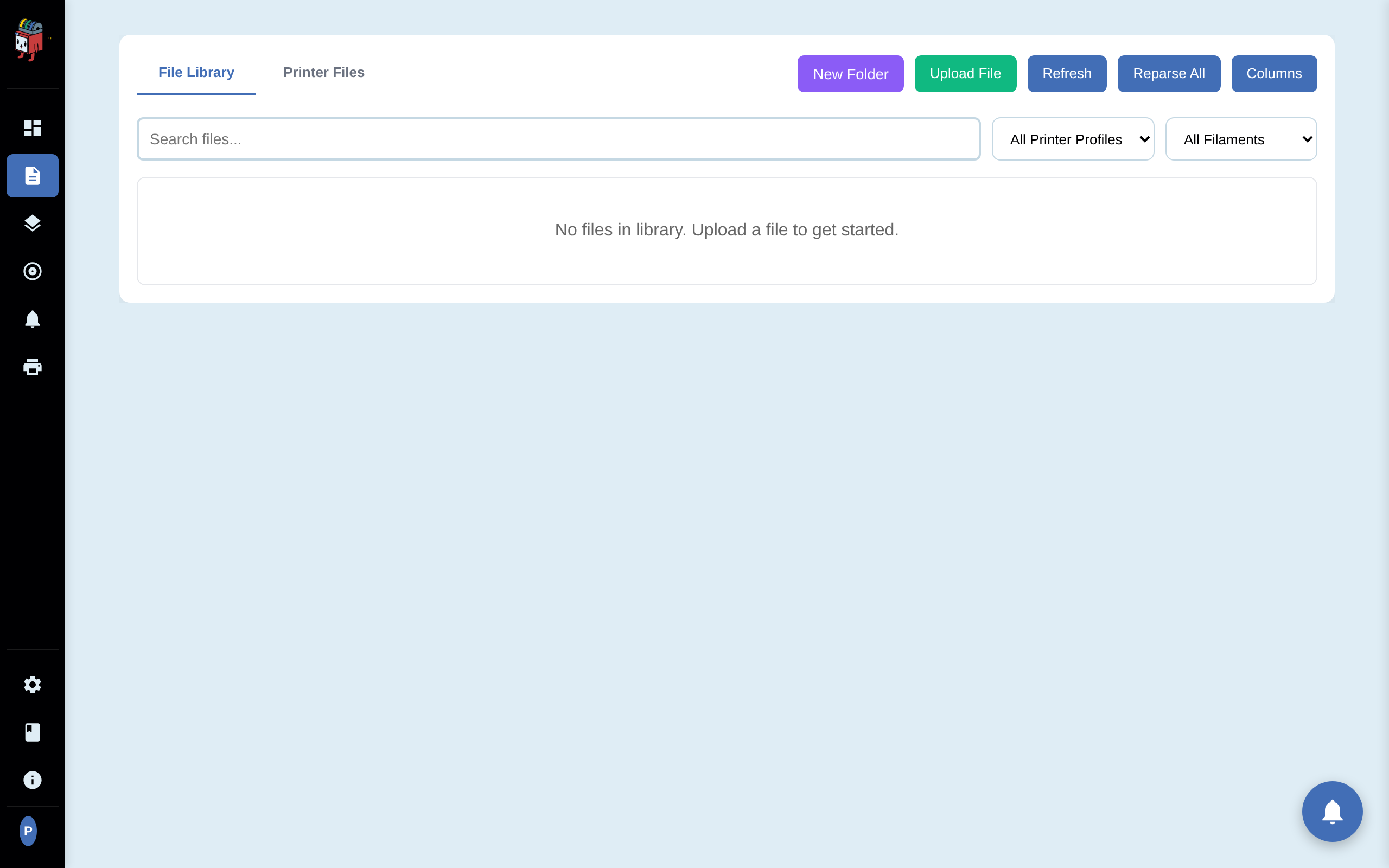
The two sub-tabs
- File Library. Files stored on the PrinterMon node, plus any files uploaded or pushed in.
- Printer Files. Files that live on a specific connected printer (its SD card or internal storage). Pick a printer from the dropdown to load its file list. Useful for printing files that were uploaded directly to the printer, or for cleaning out old files from the printer's storage.
Toolbar
- Move to Folder. Visible only when files are selected via row checkboxes. Moves the selection into a folder.
- Delete Selected. Visible only when files are selected. Bulk-removes them.
- New Folder. Create a folder to organise files. Folders nest.
- Upload File. Opens the same Upload Print File dialog as Add Job on the dashboard.
- Refresh. Reload the file list from the database without re-parsing files.
- Reparse All. Re-runs G-code metadata parsing for every file. Use after a parser update or if a slicer changed its comment format.
- Columns. Customise which columns are visible in the table.
Filters
- Search. Substring match on filename and description.
- All Printers dropdown. Show only files compatible with a specific printer (matched on printer profile / nozzle / firmware).
- All Filaments dropdown. Show only files that slice for a specific filament type or branded filament.
Per-file actions
Each row has these controls (some are hidden until you hover):
- Checkbox. Multi-select for bulk operations.
- Lock (🔒 / 🔓). Prevents deletion. Locked files cannot be removed by bulk delete or the per-row delete button.
- Thumbnail. Click to open the job detail page.
- Rename (✎). Inline rename of the filename.
- Print (▶). Opens a Push dialog to pick which printer(s) to send the file to.
- Download (↓). Download the original file.
- View G-code (👁). Opens the job detail view with G-code preview.
- Delete (✕). Removes the file from the library (and from any printer that had it as Active Job).
Configurable columns
Click Columns to toggle which fields show. Available columns:
- Lock state, Thumbnail, Filename (always shown), Date
- Print Time, Slicer, Filament, Nozzle Diameter, Printer Profile
- Filament Usage (grams/metres), Filament Cost
- Printers (which printers this file is assigned to), Layers, Max Z, Layer Height
- Nozzle Temp, Bed Temp, Chamber Temp
- Infill, Support, File Size, Group, Last Printed
Column choices persist per browser.
Missing-data warnings
Files that didn't parse cleanly get a yellow row footnote listing what could not be extracted (slicer, printer profile, filament type, nozzle diameter, print time / filament usage). Re-uploading or running Reparse All usually fixes these once the parser is updated.
Folders and breadcrumbs
Folders are virtual — they're just a path attribute on files in the database, not real directories on disk. Click a folder to enter it. The breadcrumb row above the file list lets you climb back up. Moving a file between folders is metadata only; the file itself never moves on disk.