
Manage Filament
PrinterMon tracks filament in two places: a global Inventory of spools, and per-printer Slot assignments. The inventory is your spool catalogue (what you own, what colours, who made it, how much is left). Slot assignments link a specific spool to a specific printer slot so the dashboard shows the right colour and the file library can warn you when a job needs filament you don't have loaded.
Filament Inventory
Filament Tab
Click Filament in the left sidebar. The Filament Inventory page lists every spool PrinterMon knows about. The table columns are: Color (with swatch), Type, Manufacturer, Model, Weight, Full count, Partial count, Loaded count, AMS Mapping, Actions.
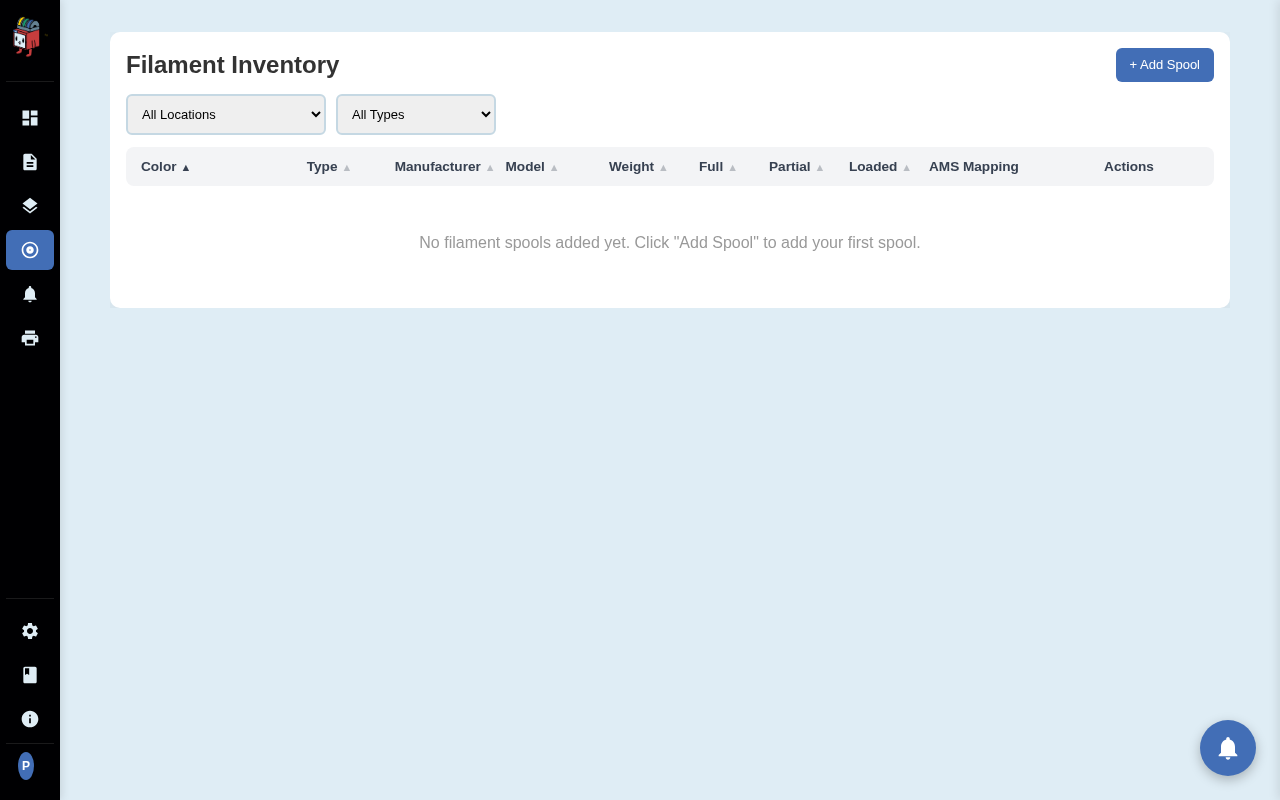
- Color. Swatch + name. Click the column header to sort.
- Type. Material category (PLA, PETG, ABS, etc.). The Type filter at the top narrows the table.
- Manufacturer / Model. Optional metadata; useful for buying replacements.
- Weight. Spool size in grams.
- Full / Partial. Inventory counts for each. Decrease as you use spools.
- Loaded. How many slots across all printers currently have a spool of this type/colour loaded.
- AMS Mapping. For Bambu users: the RFID tray ID → spool mapping.
Add a spool
Add Spool
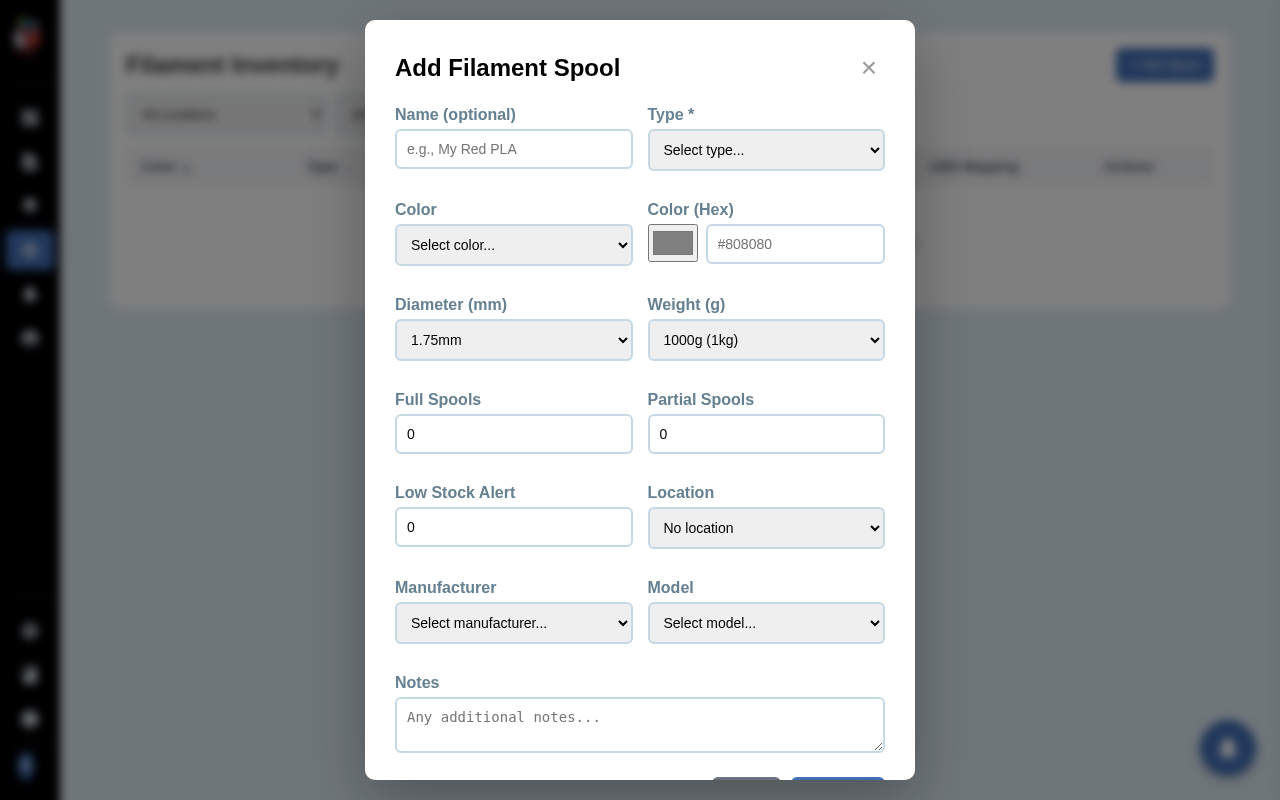
Click + Add Spool in the inventory toolbar (or click Add Filament on the dashboard). The Add Filament Spool dialog opens. The dashboard's Add Filament button is a shortcut to this same dialog.
- Name. Optional label (e.g. "Workshop Black PETG").
- Type. Required. Pick from the dropdown or type to add a custom type.
- Color and Color (Hex). Sets the swatch shown on the dashboard and in slot cards. Pick from common colours or type a hex code.
- Diameter. 1.75mm (default) or 2.85mm.
- Weight. Default 1000g (1kg spool).
- Full Spools / Partial Spools. Inventory counts.
- Low Stock Alert. Threshold for "running low" notifications. Triggers when Full + Partial total drops to this number.
- Location. Optional storage location (e.g. "Drybox 1"). Filterable from the inventory page.
- Manufacturer / Model. Optional. Helpful for buying more of the same.
Click Save. The spool appears in the inventory immediately, available for assignment to printer slots.
Assign a spool to a printer slot
Two paths:
- From the dashboard. On the printer's row, click an empty slot box under the printer name. A picker opens listing available spools — choose one.
- From Edit Printer. Open the Edit Printer dialog. Click the green Manage Filament button next to Save. The Manage Filament modal opens with one card per slot. Pick a spool from each slot's dropdown and click Save.
Bambu AMS — Load from AMS
For Bambu printers with an Automatic Material System, the Manage Filament modal shows a Load from AMS button. Clicking it pulls each tray's current RFID-detected filament metadata and assigns matching spools to the corresponding slot cards. Saves a round of manual data entry every time you swap a Bambu tray.
Edit or delete a spool
In the Filament Inventory table, the Actions column has buttons to edit (opens the same dialog as Add) or delete the spool. Deletion is blocked if the spool is currently loaded in a printer slot — unload it from the printer first.