Settings: Permissions
The Permissions tab is where the organization owner defines what each role (Print Operator, Maintenance Tech, custom roles) is allowed to do on this node. It's only visible to the org owner, and only when the node is linked to a printermon.com organization with Require Browser Login enabled.
Permission Matrix
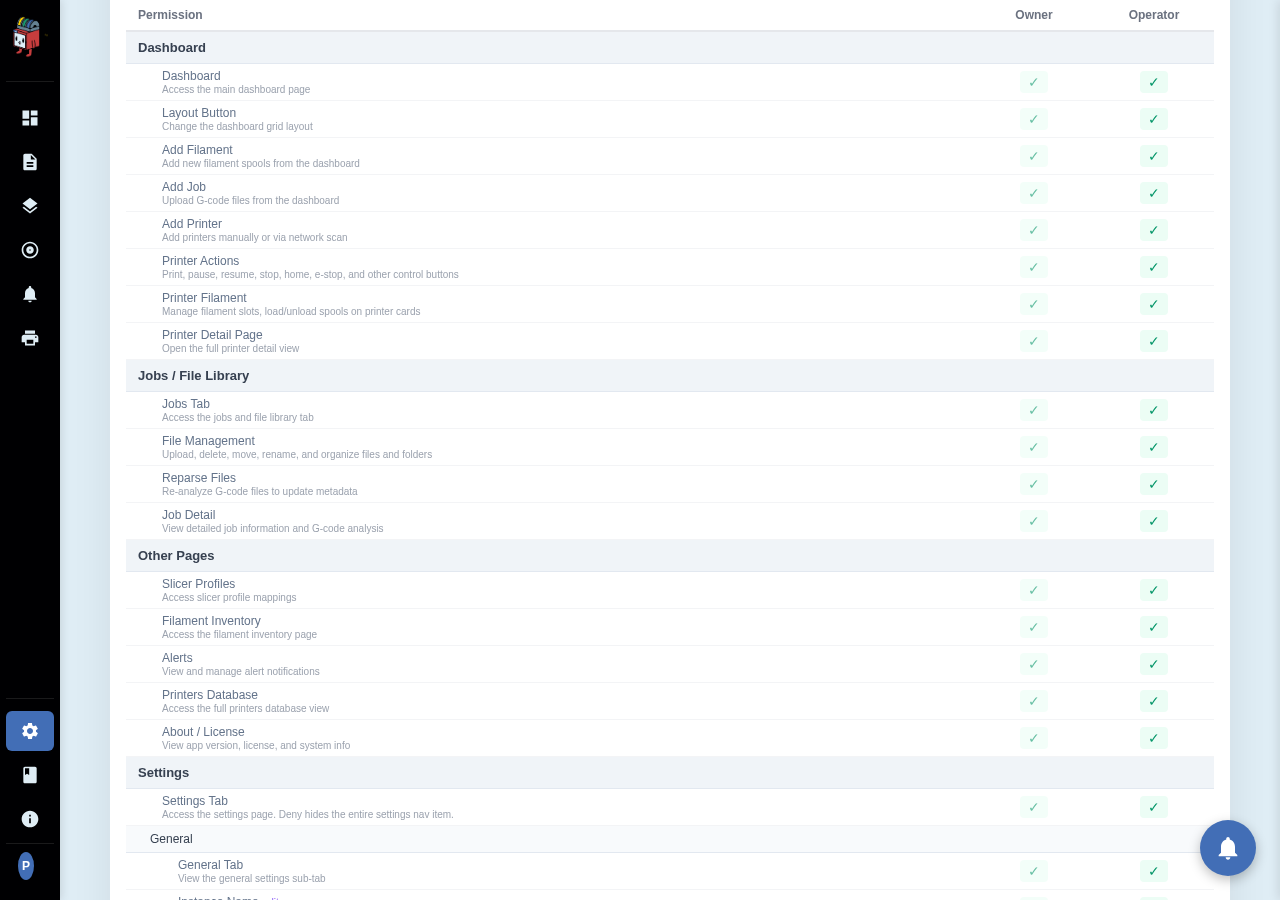
Settings > Permissions. The page renders as a wide table — permissions down the left, roles across the top.
Reading the matrix
Each row is one permission (e.g. "Settings > System > Backup", "Dashboard > Add Job", "Printer > Edit"). Each column is a role. The cell holds one of three states:
- Allow (default). Full access. Hidden state — cells with no explicit override are allow.
- Read-only. The user can see the UI but every form is disabled. Useful for view-only spectator roles.
- Deny. The UI is hidden entirely. The user doesn't even see the page or button.
Changing a cell saves immediately. Changes apply to every active session on the next page load.
Custom roles
Roles are defined on printermon.com (Account > Organization > Roles). Any custom role you create there shows up as a new column in this matrix on every node that org owns. See Invite a User for the role-assignment side.
Org Owner is exempt
The org owner column is read-only and always full access — you can't deny yourself out of your own node. Transfer ownership on printermon.com if you need to step down.