Settings: Slicer API Key
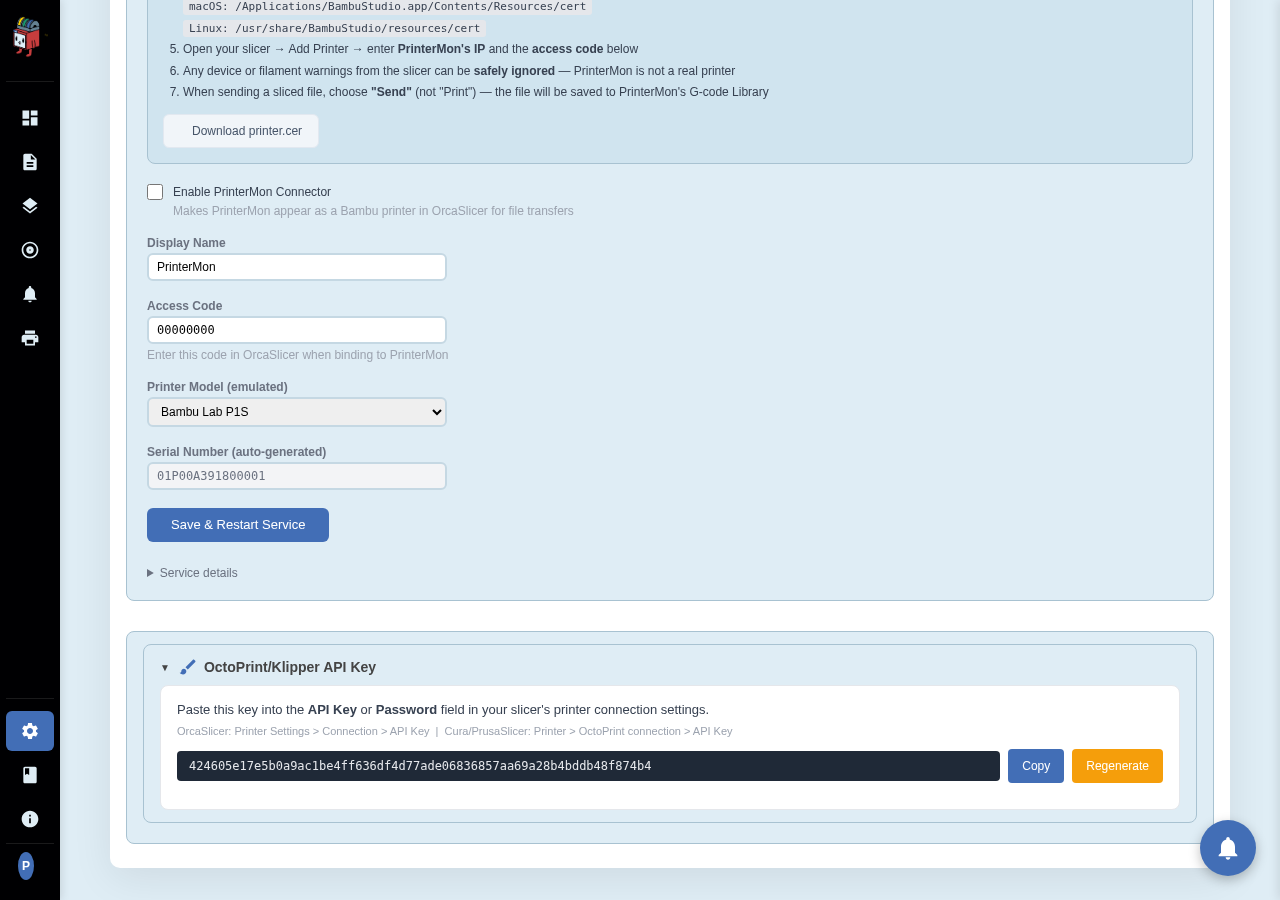
The Slicer tab's OctoPrint/Klipper API Key card displays the per-node API key that your slicer uses to push G-code into PrinterMon. The same key is also rendered inside the Account card on the General tab (only when Require Browser Login is on), but THIS card is always visible regardless of auth state — it's the canonical place to grab the key.
API Key Card
Settings > Slicer > OctoPrint/Klipper API Key.
Using the key
Click Copy to put the key on your clipboard. Then paste it into your slicer:
- OrcaSlicer: Printer Settings > Connection > API Key
- PrusaSlicer / Cura: Printer > OctoPrint connection > API Key
For step-by-step slicer-side setup with screenshots, see Connect Your Slicer.
Regenerate
The orange Regenerate button creates a fresh key and invalidates the old one. Use it when:
- A slicer machine was stolen, sold, or otherwise removed.
- You suspect the key was leaked (screenshots, support tickets, public configs).
- You're rotating credentials as a routine practice.
After regenerating, every slicer that was using the old key will stop working until you paste the new value in. There's no in-band notification — you have to update each slicer yourself.
Who can see and regenerate
View: any logged-in member. Regenerate: only the organization owner. The card greys out the Regenerate button for non-owners. Without browser login enabled the API isn't gated anyway; the key is informational in that mode.