Print Actions
Every printer row on the dashboard has an Actions column. The buttons that appear depend on the printer's current state and the firmware's capabilities. Some actions are immediate; the destructive ones (Abort, E-Stop, Delete) show a confirmation first.
Quick reference
Actions Column
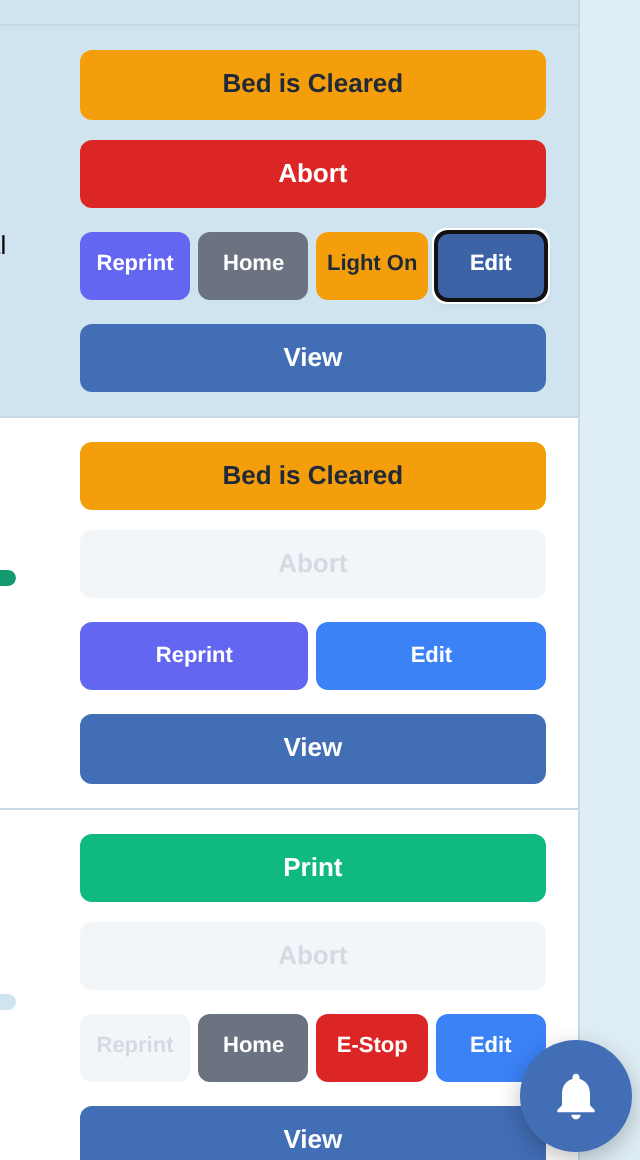
Each printer row's Actions column stacks buttons vertically. The exact set varies by printer state.
Print and reprint
- Print (green). Sends the printer's Active Job to the firmware and starts the print. Shown when the printer is Idle and a job is assigned. Triggers a confirm dialog: "Start printing 'filename'?".
- Reprint (purple). Re-runs the last completed job. Same confirm flow as Print. Shown after a print finishes; persists until you clear it by starting a different job.
Abort a running print
Abort Confirm
The red Abort button is shown while the printer is Printing or Paused. Click it to stop the running job. PrinterMon asks you to confirm before sending the cancel command to the printer.
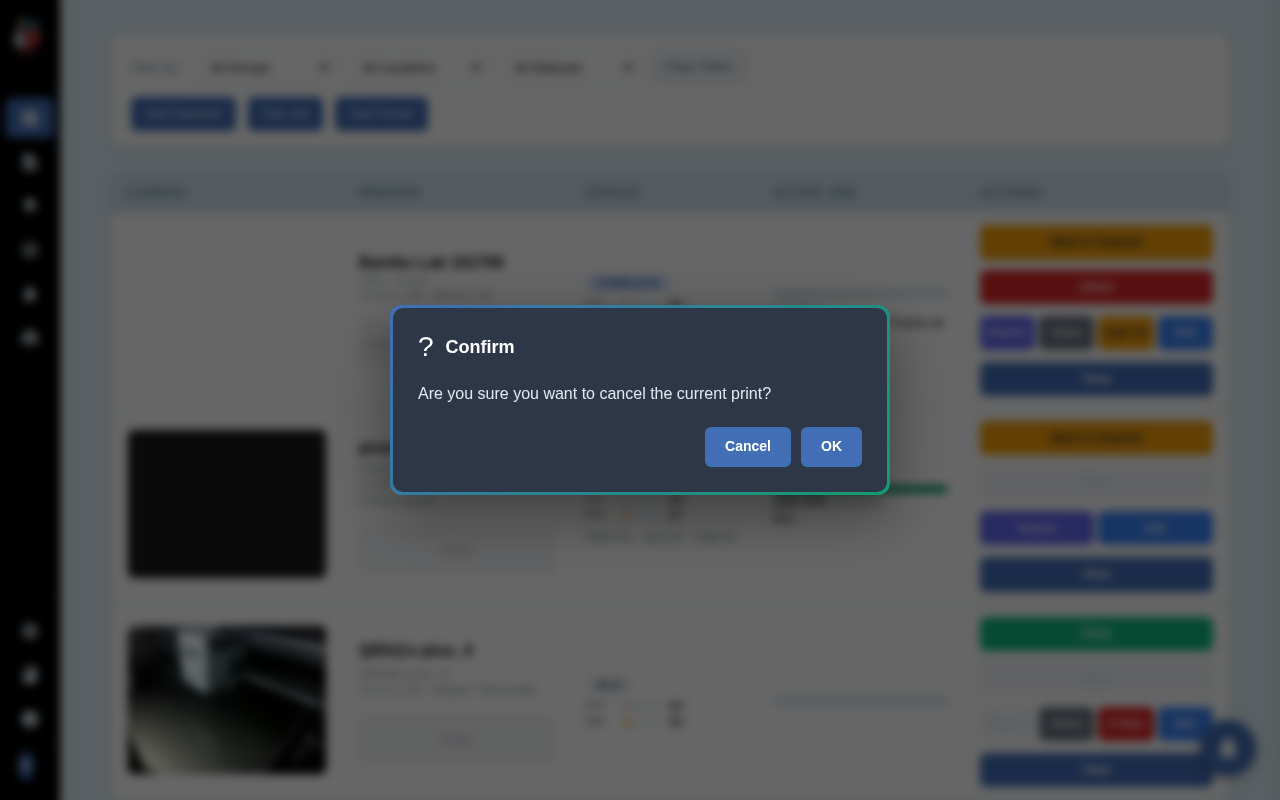
If you confirm, PrinterMon sends a stop request to the printer's firmware. The printer winds down (lifts head, retracts filament, cools heaters) according to its own end-of-print routine. The Active Job clears, the status moves toward Idle, and an alert is logged.
Movement and chamber controls
- Home. Sends the printer to its home position. Use sparingly between prints. Some firmwares refuse Home while printing.
- Light On / Light Off. Toggles the chamber LED. Only shown for firmwares that expose a light control (Bambu, some Klipper builds with chamber accessories).
Emergency Stop
E-Stop Confirm
E-Stop is the heavy hammer. Use only when the printer is doing something dangerous and you can't wait for an orderly Abort.
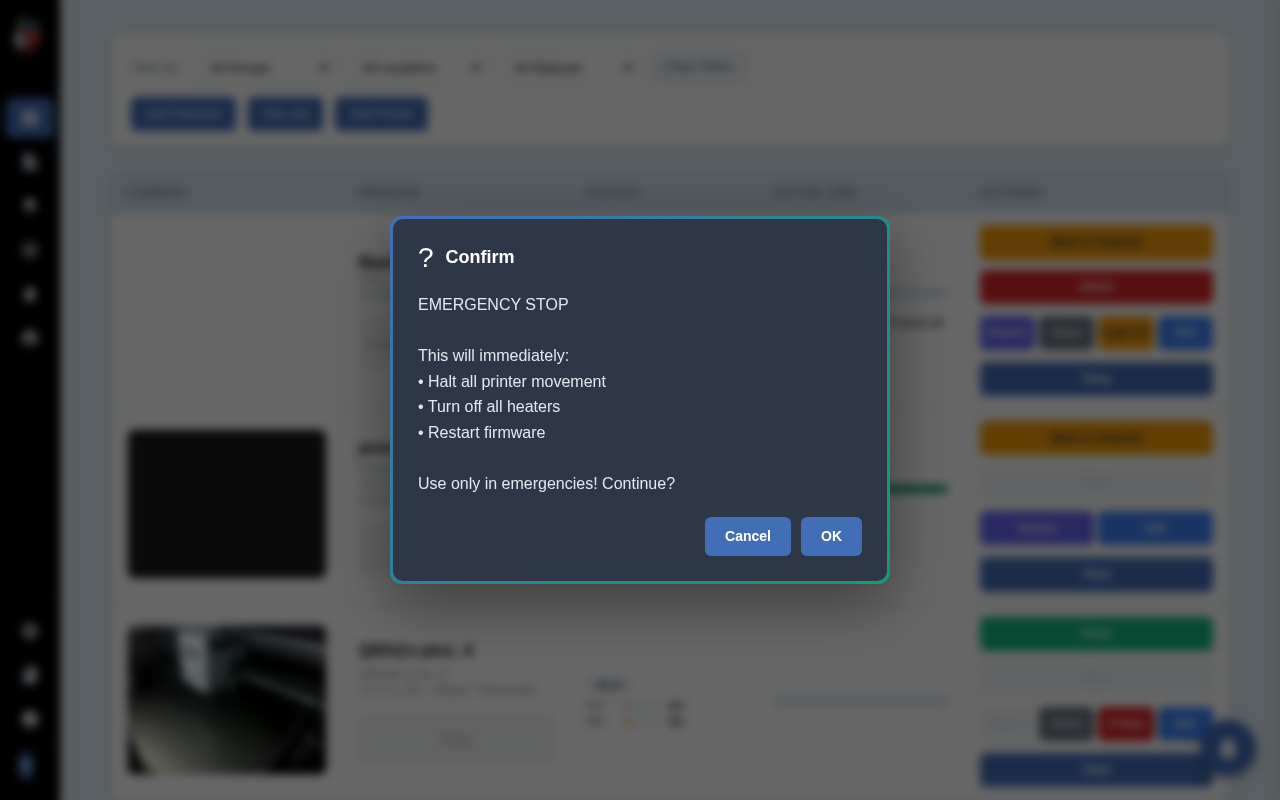
The confirm explicitly lists the three things E-Stop does: halts movement, turns off heaters, and restarts firmware. If you confirm, PrinterMon sends two API calls back-to-back: an emergency_stop, then a firmware_restart one second later. The printer comes back up cold and homed (or unhomed, depending on firmware).
E-Stop will leave a half-extruded blob or a hot bed cooling rapidly. Be ready to clean up. Prefer Abort when the situation is bad but not dangerous.
Bed is Cleared
The yellow Bed is Cleared button replaces Print after a completed job, blocking accidental restarts on top of a finished part. See Bed is Cleared.
Reconnect, Edit, View, Delete
- Reconnect. Replaces Print when the printer goes offline. Scans the printer's last-known subnet, matches MAC, updates the IP if it changed.
- Edit. Opens the Edit Printer dialog. See Edit a Printer.
- View. Opens the printer detail page with full status, live camera, temperature graphs, console output, and per-printer settings.
- Delete. Removes the printer from PrinterMon. See Delete a Printer.
Bambu-specific buttons
Bambu Lab printers also expose firmware-specific buttons (control panel fragment): chamber speed cycle, light toggle (mapped to Bambu's chamber LED), camera resolution toggle. These appear under Bambu rows only.